
At a glance
- Active saves are in game-folder profile/save/<account>, not the original NUP.
- Add Log and Settings creates a bug-report export; turn it off for a plain save export.
- Launcher ZIP import and single-slot folder import have different replacement scope.
Where are NX2navi save files stored?
Open the actual generated game folder, which may be different from the Windows launcher's installation directory. Active saves use profile/save/<account>. The account identifier is recorded in profile/account.uid; do not assume a fixed account-folder name from another person's screenshot.
The profile can also contain save-tx, used for completed data awaiting commit. That is one reason manually copying a single apparent slot while the game runs can miss relevant state. Close the game normally before file operations and prefer the documented export workflow for a portable copy.
Original game inputs, native output, game configuration and saves are different kinds of data. A NUP is not your progress backup, and copying only nx2navi.ini preserves settings rather than saved progress. Installation and settings explain those separate locations.

<selected game folder>/
  nx2navi.ini
  profile/
    account.uid
    save/<account>/
    save-tx/        (when present)
saves/ (exports/import backups managed here)Active progress, exported copies and automatic backups
The launcher Home → Saves area and the game settings' Game tab expose save operations using the same shared ZIP format. The active profile is what the game uses. An export is a separate portable copy, and a pre-import backup preserves the previous state before replacement.
A backup created inside the game tree is useful but is not independent of that drive or folder. Before a significant import or manual move, keep an additional copy outside the installation. Do not rely on a folder you are about to delete to be your only recovery source.
| Data role | Location / operation | Important distinction |
|---|---|---|
| Active progress | profile/save/<account> | Used by the running game. |
| Shared save export | Export Save / Export To | A portable copy; inspect whether it includes logs/settings. |
| Pre-import backup | Game-folder saves/backup … | Protects the previous state during documented replacement. |
| Imported package tracking | saves/imported … where applicable | Different from the active save folder. |
| Independent backup | A separate location you control | Retains a recovery copy even if the installation is lost. |
Export a save or a bug report deliberately
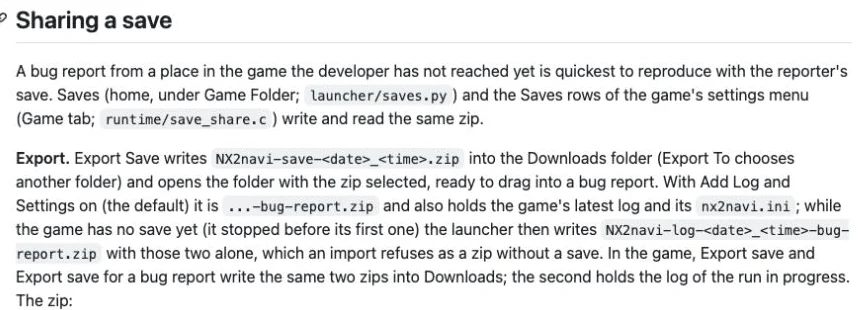
Export Save uses Downloads by default, while Export To lets you choose another directory. The default Add Log and Settings option is on, producing a bug-report ZIP that includes the game log and INI as well as available save data. Turn that option off when you only intend to export a plain save.
Review a report before sharing it. Logs and settings can reveal paths or environment details; do not assume they are anonymous. The documented exporter excludes keys and game data, but any files you manually add still need your own review.
If there is no save, enabling bug-report export can produce an archive containing only logs/configuration. That is useful diagnostic material, but it is not a saved-progress package and cannot be imported as one. A successful export message does not prove that the archive contains progress.
Choose the save operation
Open Home → Saves in the launcher or the documented Game tab save row. Select Export Save or Export To.
Choose the intended contents
Leave Add Log and Settings on for a deliberate diagnostic report; turn it off for a save-only copy.
Confirm the destination and archive
Locate the resulting ZIP, verify its purpose and keep an independent backup before any import.
Review before sharing
Inspect included log/INI information and do not add game data, keys or unrelated private files.
Importing a shared ZIP can replace all slots
The launcher Import a Save validates the shared archive's manifest, game identity and paths, with limits on file count and expanded size. Validation is not a promise that the incoming progress is preferable to your current progress. Check what you are importing before confirming replacement.
For the standard shared-save ZIP route, the documented operation replaces the entire save, including all slots. It first backs up current progress under saves/backup …. If an input archive is taken from the saves directory, the launcher can move it into an imported subfolder after processing. Keep your own independent copy so that automatic housekeeping is not your only history.
The launcher rejects an import while the game is running. In-game import is a different timing path: it stages data under profile/save-import, reports that the change applies next launch, and backs up/applies it after you exit and start again. Do not say every import immediately changes the current session.

Folder import and a single progress.sav are different
Import a Save Folder recognizes another NX2navi profile, console-backup structures and some emulator-style structures. Recognition of a directory layout is not universal compatibility with every emulator, game version or save format. Preserve the untouched source and current destination first.
If the selected folder contains a file named progress.sav at its top level, the documented route treats that folder as a single-slot import. A slot_00 through slot_05 folder name identifies that slot; otherwise it defaults to slot_00. This differs from the whole-save shared ZIP operation and should never be described as if both replace only one slot.
The documented validation limits also differ: folder import allows up to 4,000 files/1 GB, while shared ZIP validation uses 4,000 files/256 MB. These limits describe the tool's validation, not instructions to enlarge or edit the archive until it bypasses a check.
| Import route | Replacement behavior | Timing / check |
|---|---|---|
| Launcher shared ZIP | Entire save / all slots. | Game must be stopped; manifest/content validation. |
| In-game shared import | Whole-save replacement of all slots, staged until the next launch. | Exit and restart before applying; backup occurs in the documented sequence. |
| Recognized folder | Depends on the recognized structure. | Keep source and current destination backups. |
| Top-level progress.sav folder | One slot; slot name or slot_00 default. | Do not confuse this with standard whole-save ZIP import. |
Recover a backup without losing the current state
Close the game and preserve the current profile/export, even if it appears wrong. Identify the backup by its origin and contents before importing it with the documented route. Do not overwrite several backups under one name while trying to discover which contains the desired progress.
If an archive is rejected, read the actual format, game-identity or size/path message. A log-only bug-report ZIP is not a save to repair by renaming. An emulator folder that is not recognized should be investigated against the official documentation, not forced into the active profile.
Normal updates preserve saves and configuration, but importing, manually moving directories and deleting an installation are different operations. If progress appears missing after a change, verify the running game folder and account before concluding the save was erased. For a crash reproduction, follow crash-report guidance and share only the intended diagnostic export.
COMMON QUESTIONS
Frequently asked questions
Where are NX2navi save files?
Active progress is under profile/save/<account> in the selected built-game directory, with account.uid identifying the account. Launcher installation and game output can be different folders.
Does importing a save overwrite every slot?
The standard shared ZIP route replaces the whole save/all slots. A recognized top-level progress.sav folder is a separate single-slot case. Back up independently before either operation.
How do I export only a save?
Use Export Save/Export To and turn Add Log and Settings off. With that default option on, the export is a diagnostic report including logs and configuration.
Why will my exported bug report not import?
An export without existing save data may contain only log and INI files. Such a diagnostic archive is not a valid progress package to import.
Does in-game import apply immediately?
The documented in-game path stages the import for next launch, then backs up and applies after exit/restart. The launcher path instead requires the game to be stopped.
Can I import every emulator save?
No universal compatibility is established. The tool recognizes particular structures; preserve source/destination backups and check the actual format and game identity.
SOURCE MATERIAL
Official sources
Use these project references to check the documented behavior and applicable software version. Hardware results and unresolved reports are identified in the relevant sections.